Most of you who have access to your county's Extension website frequently post Adobe PDFs on the site, as it is seen as a universal format, since it does not requite the end-user to buy anything, but merely download the Adobe Reader.
Just like images, it is a good idea to compress the size of your PDF document as much as possible, to save valuable file space on the web server. Here are three ways to do so.
Save as a Reduced Size PDF. In Adobe Acrobat, choose File, then Save As, then Reduced Size PDF. A screenshot is below, taken from Adobe Acrobat Pro X. You'll then get a dialogue box asking for Acrobat version compatibility. As it states in the dialogue box, the later version of Acrobat you choose, the lower the file size.
Labels: acrobat, adobe, web accessibility
This command is a real time-saver. Let's say you've been working on your website for the past two days and you are finally ready to upload your changes to the server, but you've worked on so many pages you don't want to go through the entire site and pick the ones to upload. You can have Dreamweaver do it for you.
First, expand the File pane using the Expand icon, shown at left (you should always expand the File pane before uploading to the server.).
Next, go to the Edit menu and choose Select Recently Modified. The dialogue box gives you three useful options, shown below. You can select any files you've created or modified in a specified number of days (the screenshot shows 2 days). You can select files you've worked on in a specific date range. Or, if you are using the Contribute option, you can select files worked on by a specific person.
Caveat! Dreamweaver often will NOT select images or documents you've added recently, even if you are linking to them from your recently modified page. You need to do that manually. And ALWAYS check your links after you've published.
Labels: dreamweaver, web design
Business Insider recently ran an article entitled "11 Google Products You Never Knew Existed." As might be expected, some of these are fun, some are fairly useless, and some appear to be useful, well-designed on-line tools.
The most interesting of the 11:
- Google Scholar lets you access articles, theses, books, abstracts, etc., from academic websites. http://scholar.google.com/
- Google Art Project lets you see works of art from museums and galleries all over the world. http://www.googleartproject.com/
- Build With Chrome lets you build 3-D structures with Lego bricks. Truly fun (and my favorite)! http://www.buildwithchrome.com/static/map
- Power Searching With Google is a tutorial that gives you tips and tricks for more efficient web searches. http://www.google.com/insidesearch/landing/powersearching.html
- Encrypted Google lets you search more securely via an encrypted SSL. https://encrypted.google.com/
The entire article can be found here.
You can use a table to place a photo and accompanying caption to a web page. Start by clicking the Table icon in the Insert panel (screenshot at left).
Use the dialogue box (screenshot below) to create a table consisting of 2 rows, 1 column. Select the table width; the example is set at 50 percent of the containing element. Set border, padding and spacing in pixels. Click OK.

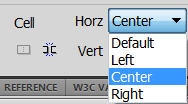
If you'd like to align the content (i.e. - the image or the text) of either individual cell, click inside the cell and use the Horizontal and Vertical cell alignment tools (screenshot at left).
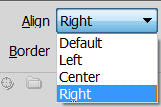
To get the accompanying text on the webpage to wrap around the table you'll need to align the table either left or right. Select the table by clicking the border. Choose Left or Right on the Table alignment tool (screenshot at left).Before you publish the page, make sure to preview it in at least two different browsers, as tables appear differently in different browsers.
Have a new copy of Dreamweaver and not sure what to do with it?
For the next four months, I will hold a Connect session on Basic Dreamweaver Skills, on the first Wednesday of every month at 9 a.m. Each session should take about 40 minutes. If you are taking over the maintenance of a new web site, these sessions may come in handy.
The schedule:
- February 6th: Defining the site in Dreamweaver/Using Dreamweaver's FTP
- March 6th: Adding basic content (text, pictures, bullet points, headers, links)
- April 3rd: Creating new pages (1, 2 and 3 column formats will be discussed)
- May 1st: Working with SSIs (top and left navigation panels, footer)
A good rule of thumb in web design is to design with dial-up internet access in mind, by keeping your page load time as short as possible. This can be called the 25 second rule: that your page will load within 25 seconds on a 384kbs (kilobits per second) modem.
Dreamweaver has a page load time indicator in very small characters in the lower right corner of the document panel. It's easy to miss (see screenshot below). But it will tell you at any given time what your page load time is.
If you want to change the sped of the modem to see how fast your page will load under various conditions, go to the Edit menu, choose Preferences, choose Window Sizes. At the bottom of the dialogue box you will find a pulldown menu to change the speed of the modem (see below).
It is fairly easy to password protect PDF documents, online or offline.
Go to the File menu, choose Properties, then go to the Securities tab. Choose Password Security.
Click OK, then re-enter the password when prompted. You'll get a warning that security features won't be enabled until you resave the document. Click OK to acknowledge the warning, and then OK one last time to close the dialogue box.
Then, resave the document to enable password security (preferably under a different document name so you can tell the two apart).
That's it. If it's a PDF to be posted online, post it as you would normally. Anyone trying to open the document,whether online or off, will encounter the dialogue box below. Once they enter the correct password, they'll be able to access the document.