Dreamweaver's Page Load Time

on Wednesday, December 19, 2012

A good rule of thumb in web design is to design with dial-up internet access in mind, by keeping your page load time as short as possible.  This can be called the 25 second rule: that your page will load within 25 seconds on a 384kbs (kilobits per second) modem.

Dreamweaver has a page load time indicator in very small characters in the lower right corner of the document panel.  It's easy to miss (see screenshot below).  But it will tell you at any given time what your page load time is.

   
If you want to change the sped of the modem to see how fast your page will load under various conditions, go to the Edit menu, choose Preferences, choose Window Sizes. At the bottom of the dialogue box you will find a pulldown menu to change the speed of the modem (see below).


Password Protecting PDF Documents

on Wednesday, December 5, 2012

It is fairly easy to password protect PDF documents, online or offline. 

Go to the File menu, choose Properties, then go to the Securities tab. Choose Password Security.

Check the Require a Password... checkbox and enter a password.


Click OK, then re-enter the password when prompted.  You'll get a warning that security features won't be enabled until you resave the document.  Click OK to acknowledge the warning, and then OK one last time to close the dialogue box.

Then, resave the document to enable password security (preferably under a different document name so you can tell the two apart).

That's it.  If it's a PDF to be posted online, post it as you would normally.  Anyone trying to open the document,whether online or off, will encounter the dialogue box below.  Once they enter the correct password, they'll be able to access the document. 


Using Custom Find and Replace in Dreamweaver

on Friday, November 16, 2012

Using the Find and Replace command in Dreamweaver, can save you lots of time, particularly if you are adding the same code and/or text in multiple pages, like keywords, or navigation panels.  What makes the command particularly useful is that you can customize the limits of the search.  I use this all the time. It's a real time-saver.

To start, go to the Edit menu, and choose the Find and Replace command.  The dialogue box below will appear.


The Find text box and the Replace text box are pretty self-explanatory. Where this really becomes useful is in using the Find In and Search pulldown menus at the upper left.


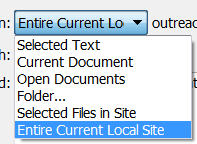
The Find In menu (see screenshot at left) allows you to find/replace in just one page, a selected set of pages, a selected folder, or an entire site.


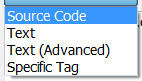
The Search menu (see screenshot at right) allows you to find/replace either in the Text or in the Source Code, but in addition can find/replace inside Specific Tags only, and even, using Text (Advanced), to find/replace text only within specific tags (e.g. - a link, a header, a table).

By using these two pulldown menus wisely, you can save yourself hours of time.   
 

Pixlr Settings

on Thursday, October 18, 2012


Pixlr is a free browser-based image editor, where you upload an image, manipulate it online, and the download the result.  Now Pixlr has three settings (shown above):

Pixlr editor (Advanced) is the most useful tool of the three, allowing you to resize images, combine images, add text, use filters, and many other commands.  The look and feel is very similar to Photoshop, so if you want to get comfortable with using Photoshop, Pixlr is not a bad way to start.  And, unlike Photoshop, it's free! 

Pixlr express (Efficient) presents only a handful of the most useful tools: resizing, text, and basic effects. In my humble opinion, the least useful of the three settings.

Pixlr-o-matic (Playful) is, as the name implies the most fun of the three, allowing you to add many cool and interesting effects, quickly and easily.  Three of them are shown below (the original photo is from 4-H).


iPad Tricks and Tips (part 2)

on Thursday, September 20, 2012

Five more cool things you can do with you iPad (the first 5 are linked here):

Selectively prevent automatic sync: If you have lots of music in iTunes on your PC, it will overwhelm your iPad memory very quickly.  Hold down Shift-Ctrl (or Command-Option, on a Mac) in iTunes while plugging your iPad in, and iTunes will skip the automatic sync just this once. Alternatively, you can safely interrupt a sync by dragging the unlock slider on your device while the iPad is midsync.

Create custom shortcuts for common phrases: Great for addresses, or commonly used phrases. Make AutoCorrect work for you by teaching iOS to transform shorthand (such as "omw") into common phrases (like "on my way") using iOS 5 shortcuts. Simply navigate to Settings, General, Keyboard, and select Add New Shortcut. Type the phrase you want to shorten in the Phrase field, and then type the shortened version you want to use in the Shortcut field.

Restrict mature content: Go to Settings, General, Restrictions and tap Enable Restrictions to selectively apply controls on your apps, content, Game Center, and more. You can use this setting to limit mature content on your new iPad by disabling explicit-language recognition, blocking podcasts that have the "Explicit" tag, or blocking movies, TV shows, and apps that are rated for mature audiences.

Sync your bookmarks: This is my favorite.  You can use iTunes to sync your iPad's Safari bookmarks with your PC's Web browser. Open the iPad tab in iTunes, click the Info tab, scroll down to the Other heading, check Sync bookmarks with, and choose your preferred browser.

Download the free iPad User's Guide: iPad doesn't come with a printed manual. However, you can download the PDF version of the iPad User's Guide from Apple's Web site, or you can read it in iBooks if you have that installed (iBooks is available as a free download in the App Store).

IPad Tips and Tricks (part 1)

on Wednesday, September 12, 2012

Five cool things you can do with your IPad:

Screenshots: Take a screenshot of whatever is on the screen: Press Home and the sleep/wake button simultaneously. The screenshot will automatically appear in your Camera Roll.

Multitasking: You likely already know that you can press the Home button twice to bring up a list of currently running apps. However, you can also swipe the multitasking bar to the right to quickly access audio/video playback controls, a shortcut to the iTunes app itself, and volume controls.

URLs: You can check a linked word's actual destination URL by touching and holding down on the link.  It's a smart strategy to help you insure the link is legitimate.

Web Shortcuts: Head to the webpage you want to create the shortcut to, tap the “+” sign at the top of the page and select “Add to Home Screen.” This will then create a shortcut icon offering one-click access to your favorite sites.  

Multiple spaces: I don't know if this is useful, but it sure is cool.  The spacebar will create as many spaces as there are fingers on it, so one finger will produce one space, two fingers two spaces and so on.

Five more cool tricks next week!

Fall 2012 Connect Schedule

on Thursday, August 16, 2012

Happy Fair Season! Below is the schedule for Connect sessions offered by the Tech Unit of CSU Extension. There are two basic threads: on the first Wednesday of every month we'll be exploring Adobe Acrobat and the creation of PDF forms; on the third Wednesday of each month Joanne Littlefield and I will collaborate on a series of sessions about working with graphics, logos and templates.

All sessions will start at 9 a.m. MST, and will last approximately 45 minutes.

• 9/5 – Adobe forms 1: Creating the form
• 9/19 - Brochure templates (w/Joanne Littlefield)
• 10/3 – Adobe forms 2: Distributing the form
• 10/17 - Working with logos (w/Joanne Littlefield)
• 11/7 – Adobe forms 3: Collecting the data
• 11/21 - Newsletter templates (w/Joanne Littlefield)
• 12/5 – PDF security
• 12/19 - Graphics for the web / Pixlr (w/Joanne Littlefield)
• 1/9 – Google docs forms
• 1/16 – Posters (w/Joanne Littlefield)

In addition, the Adobe Acrobat sessions will be offered to our Extension colleagues across the country through eXtension.